
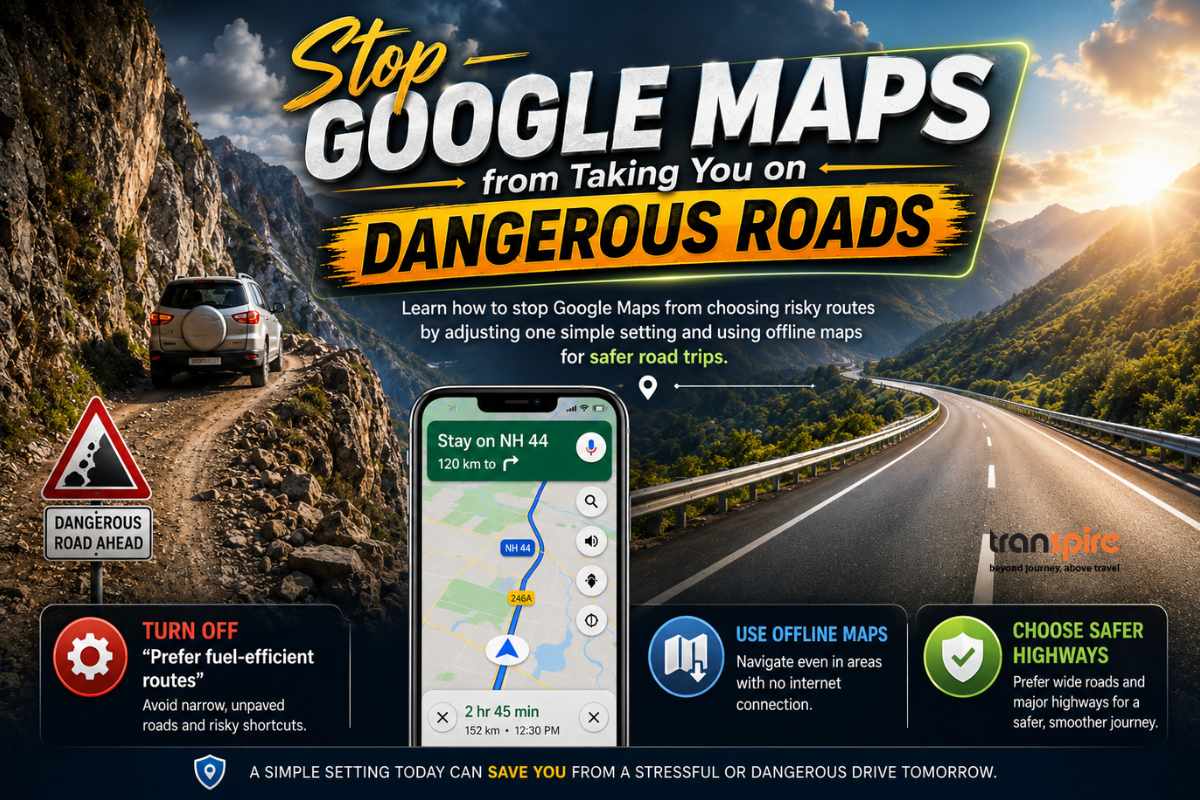
Learn how to stop Google Maps from choosing risky routes by adjusting one simple setting and using offline maps for safer road trips.
Google Maps has become an essential travel companion for millions of drivers. Whether you’re heading to a nearby town or planning a long road trip, it’s often the first app we rely on for directions. However, while Google Maps is incredibly helpful, it isn’t perfect. In some situations, it can guide you onto narrow dirt roads, steep mountain paths, or isolated routes that are far from ideal.
If you’ve ever wondered why Google Maps sometimes chooses these risky roads, there’s a simple explanation—and an easy fix. By changing one hidden setting and preparing your maps in advance, you can enjoy a much safer and more comfortable journey.
Why Does Google Maps Sometimes Choose Dangerous Roads?
Imagine you’re driving with your family to a beautiful hill station. Everything is going smoothly until Google Maps suddenly tells you to turn onto a tiny road. Before long, you’re driving through a narrow dirt track with barely enough space to turn around.
Unfortunately, this situation is more common than many people realize. Drivers have reported being directed onto forest trails, dead-end roads, steep mountain passes, and even dangerous cliffside routes.
So, why does this happen?
The Hidden Setting Behind These Routes
One of the main reasons is Google’s “Prefer fuel-efficient routes” feature.
This option is designed to reduce fuel consumption by selecting routes that may save a small amount of fuel. Although this sounds like a great idea, it doesn’t always choose the safest or most comfortable roads.
Instead, the app may prioritize routes that are:
- Shorter in distance
- Less congested
- Slightly more fuel-efficient
As a result, it can sometimes avoid major highways and send you through smaller local roads that aren’t suitable for every vehicle.
Why Fuel-Efficient Routes Can Be Risky
Saving fuel is certainly beneficial, especially when fuel prices are high. However, the safest route isn’t always the one that uses the least fuel.
Here are a few reasons why this feature can create problems.
It May Avoid Main Highways
To improve fuel efficiency, Google Maps may steer you away from wide highways and instead recommend smaller roads that are less safe or poorly maintained.
It Can Prioritize Shortcuts
The app occasionally selects shortcuts through:
- Narrow village roads
- Broken or unpaved streets
- Mountain passes
- Remote rural areas
While these routes may reduce travel distance slightly, they can make driving much more stressful.
Larger Vehicles Face Bigger Challenges
If you’re driving an SUV, MPV, van, or any larger vehicle, these narrow roads can become especially difficult.
You may encounter:
- Tight corners
- Limited turning space
- Steep inclines
- Roads where reversing is extremely difficult
This can quickly turn a relaxing road trip into a frustrating experience.
How to Turn Off Fuel-Efficient Routes
The good news is that changing this setting only takes a minute.
Follow these simple steps before your next trip.
Steps for Android and iPhone
- Open the Google Maps app.
- Tap your Profile Picture in the top-right corner.
- Select Settings.
- Open Navigation Settings (or Navigation).
- Scroll down to Route Options.
- Find Prefer fuel-efficient routes.
- Turn the option Off.
Once disabled, Google Maps will generally prioritize wider roads, major highways, and routes that are easier and safer to drive.
Google Maps remains one of the best navigation apps available, but a few simple adjustments can make your trips much safer. By turning off the Prefer fuel-efficient routes option and downloading offline maps before you travel, you can avoid unnecessary detours, dangerous shortcuts, and navigation problems in areas with poor network coverage.
The next time you’re planning a road trip, take a minute to update these settings. A small change today could save you from a stressful—or even dangerous—drive tomorrow.
If you found this guide helpful, share it with your friends and family so they can enjoy safer and smoother road trips too.

Trusted since 2013
Best Deal on Force Urbania Rental
Force Urbania Rental
- Transparent fares
- Professional chauffeurs
- Guaranteed pickup
- 24×7 support
Looking for a reliable Kochi taxi service from Kochi (Cochin)? Call or WhatsApp us now to reserve your vehicle today and enjoy a hassle-free journey.
Get in touch
Have other questions?
For any questions about our transportation services, tour packages, or other details, our team is here to assist you with the information you need.
Email us
Call us
Have a question?
Send us a message
Send us a message, and our team will get back to you as soon as possible.